
Categories
Give each Pocket a category and your list, your filters and your spending chart all sort themselves out.
What categories are for
Every Pocket can have a category, like Automotive for your Car Payment, Car Registration and License Renewal Pockets. Categories let you:
- Group your Pockets list. On Pockets, set Group by to Category and each category gets a header showing what its Pockets average per paycheck.
- Filter and search. Pick a category in the Pockets filter, or type its name in the search box.
- See where your money goes. Spending Insights counts what you spend from a Pocket under that Pocket's category. See Spending Insights.
Set a Pocket's category in the Pocket's Category field. To set it on several at once, select them and choose Actions → Assign Category (see Change several at once).
Open Manage Categories
Tap Profile, then Manage Categories under Preferences. Each row shows the category's color, its name and how many Pockets use it.
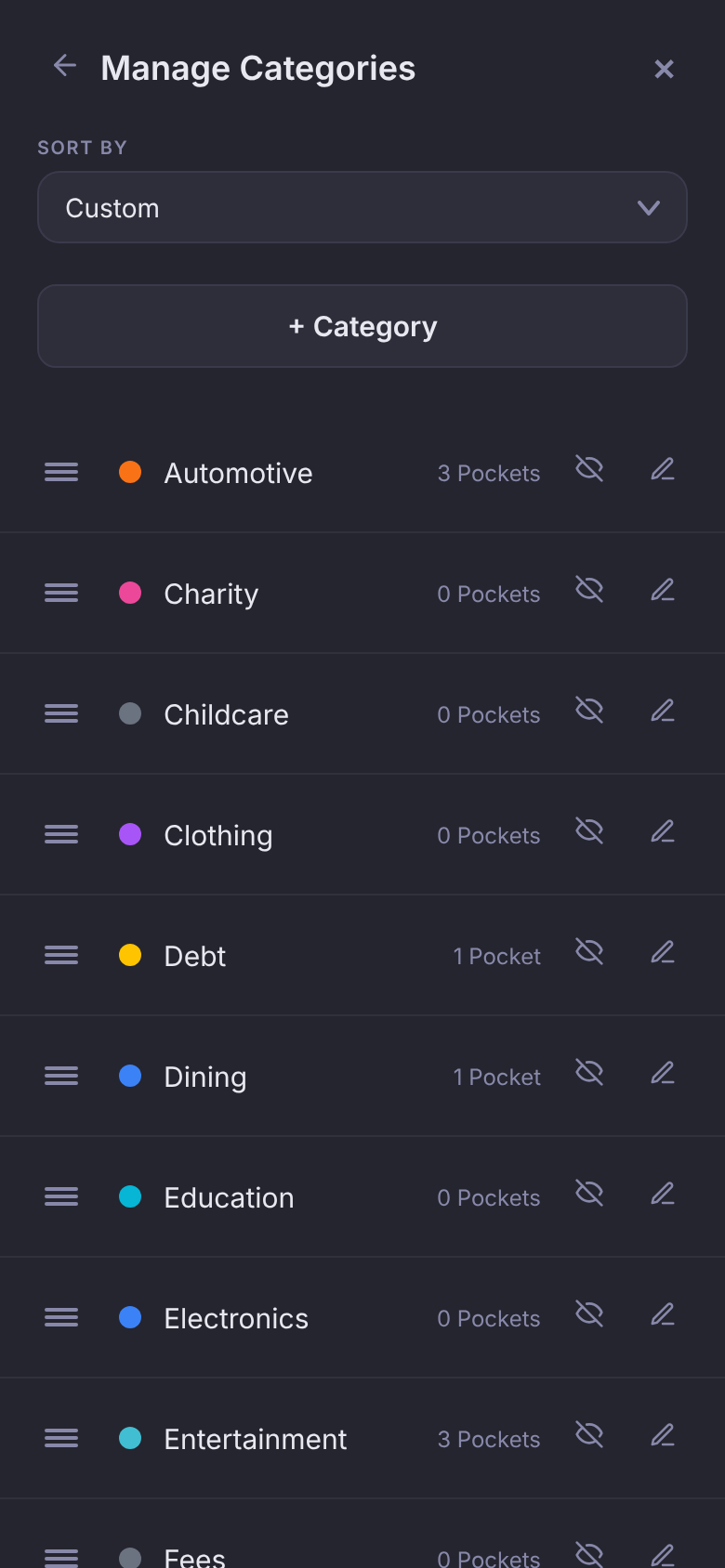
Rename or recolor a category
- Tap the pencil on its row.
- Change the Name, or tap a Color. The multicolor circle at the start opens a full color picker.
- Tap Save. (It reads Done until you change something.)
Every Pocket in that category, and its slice in Spending Insights, picks up the new name and color.
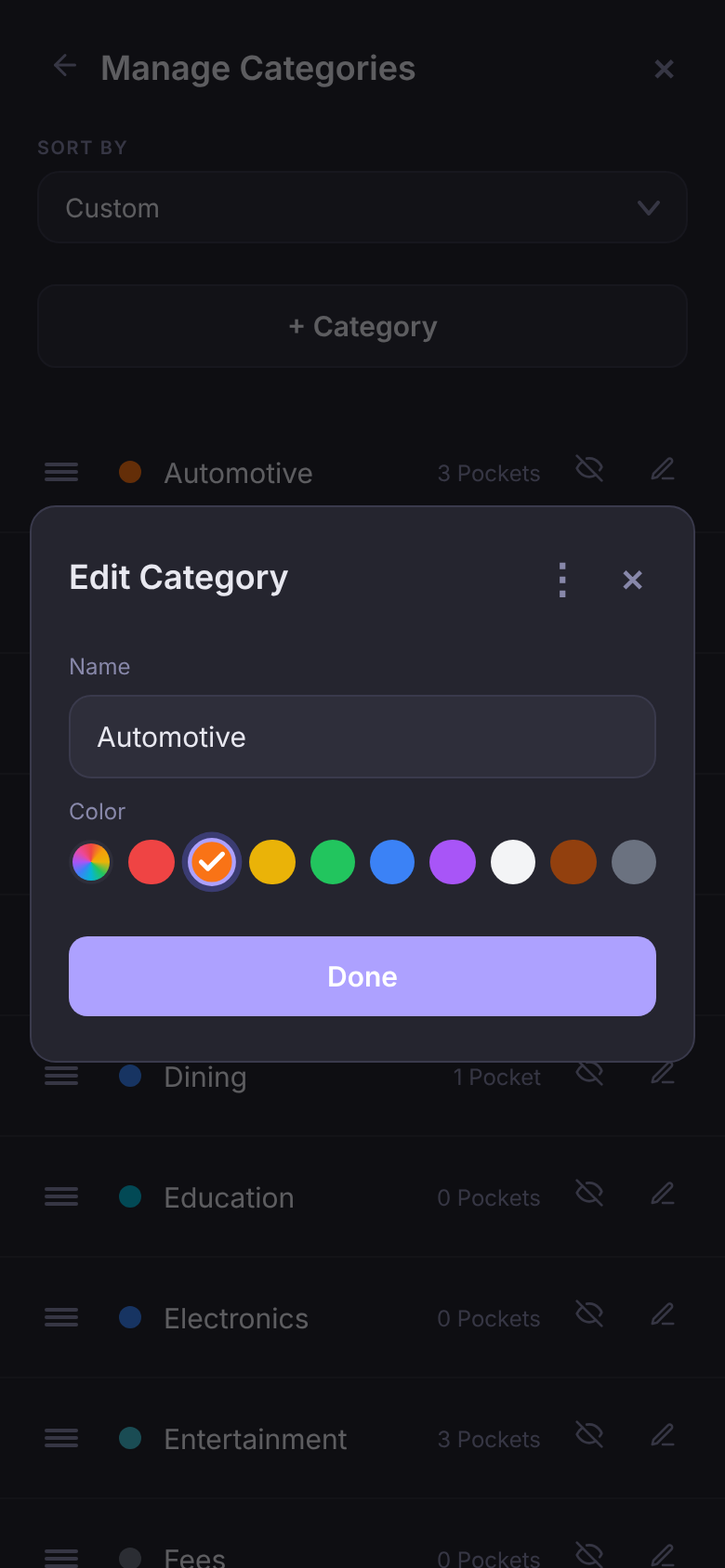
A category you've renamed has Reset to Default in this dialog's ⋮ menu, to put the original name and color back. A category you added yourself has Delete Category there instead.
Hide a category
Never going to use Childcare or Charity? Tap the crossed-out eye on its row. It moves to a Hidden section at the bottom and stops appearing when you pick a category for a Pocket. Tap the eye in the Hidden section to bring it back.
Add a category
Tap + Category at the top, give it a name and a color, and tap Save. You can also add one straight from a Pocket's Category field while you're editing the Pocket.
Sort and reorder
The Sort by menu at the top sets the order for Manage Categories and for your category groups on the Pockets screen:
- Custom is your own order, and where everyone starts. Drag a category by the handle on its left to move it.
- Name sorts A to Z.
- Number of Pockets puts the categories you use most at the top.
With Name or Number of Pockets, the button beside the menu flips the direction. Dragging only works in Custom, so a sorted list can't be rearranged by accident.
You can also reorder from the Pockets screen. With Group by set to Category, press and hold a category header and drag it. Like dragging here, it only works in Custom order.
Questions
Does hiding a category change my Pockets?
No. Pockets already in it keep it. Hiding only takes it out of the list you pick from.
Why can't I drag my categories?
They're sorted by Name or Number of Pockets. Switch Sort by to Custom and the drag handles come back.