
Credit Cards
Give every card a Pocket for its bill, so the money's waiting when the statement comes. With Credit Card Integration, every purchase sets aside its own payment as you spend.
What "owed" means
On Funds, the number beside each card is what you owe on it right now, like $207.09 owed. It's your card's current balance, not your statement, so it grows as you spend and drops when you pay.
- $0.00 owed shows in green: the card is paid off.
- credit, as in "$48.57 credit", means you've paid more than you owed, or a refund came in.
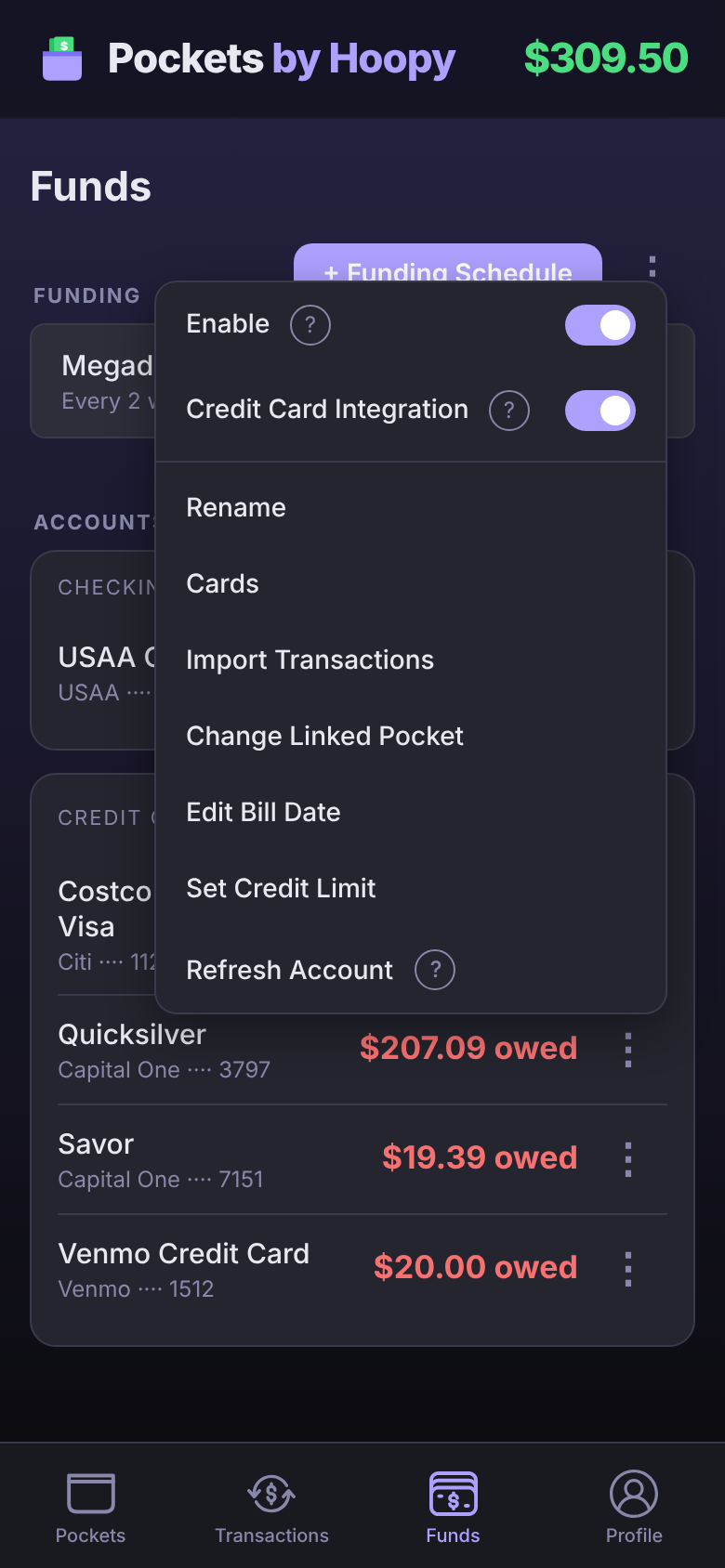
- available, under the owed amount, is how much of your credit limit is left. If your bank doesn't share your limit, add it from the card's ⋮ → Set Credit Limit.
A card's balance never counts toward Good to Go. What you owe is covered by the card's Pocket instead.
The card's payment Pocket
When you connect a card or add one by hand, Pockets asks you to set up its Credit Card Pocket, the Pocket that holds the money for its bill. Tap Create New, or Link Existing to use a Pocket you already have. Skipped it? Tap the card's ⋮ → Link Payment Pocket any time.
The Pocket carries a gold Credit Card tag and shows Balance due on your card, so you can see what it holds next to what you owe.
Without Credit Card Integration, it works like any monthly bill. You set its Amount Due, the amount you pay toward your card each month, and its due date, and each payday funds its share. When you pay the card from checking, Pockets links the payment to the card's Pocket like any bill, and the due date moves on to next month. If it doesn't, open the payment and pick the card's Pocket.
Credit Card Integration Premium
Credit Card Integration is part of Premium. Linking a card to its payment Pocket is free.
Get PremiumTurn it on and every purchase on the card sets its own money aside the moment it comes in. Spend $45.00 on dinner and $45.00 moves from Good to Go into the card's Pocket. When the bill comes, the whole balance is already there, so you can pay it in full.
- On Funds, tap the card's ⋮.
- Switch on Credit Card Integration.
- If the Pocket doesn't match what you owe, Pockets offers to set it to your balance due, so it starts off at the right amount.
With it on, you don't set an Amount Due. Pockets works it out from your purchases and fills the Pocket as you spend.
- Amount Due is your last statement: the purchases from one billing date to the next. The box under it shows the exact dates, and which due date later purchases go toward.
- The top of the Pocket shows what's Pocketed against everything you owe since your last paid statement, like $300.00 / $600.75.
- If the Pocket is short, paydays fund what's missing: first your statement, by its due date, then the purchases since, by the following due date. Funding on shows the next payday, and the Funding Schedule lists every one.
- Catch Up moves what's missing in from Good to Go right away.
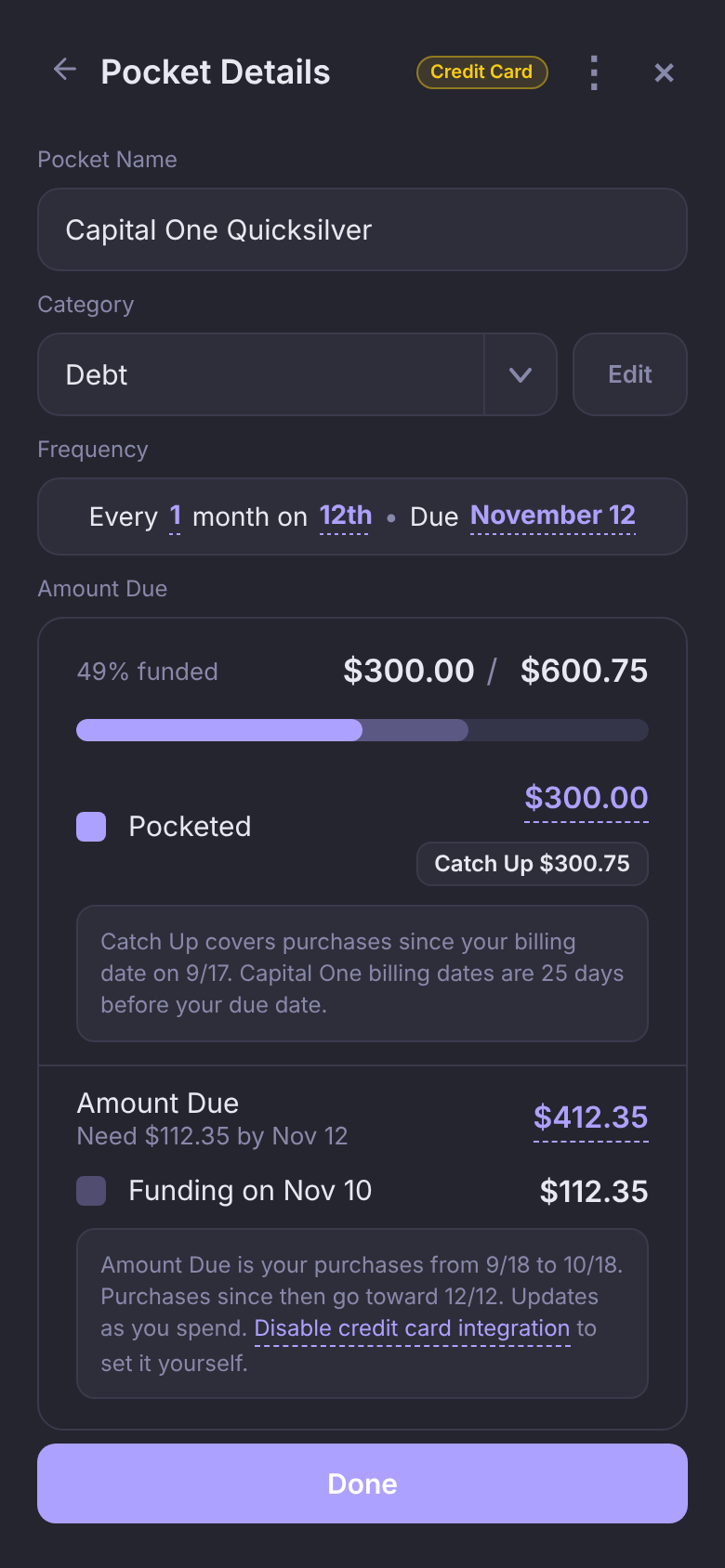
Your billing date. Pockets needs to know when your statements close. For Capital One, Citi and Synchrony cards (like Venmo), it already knows. For other cards, it reads the date from interest charges if there are any. Otherwise it estimates 24 days before your due date and asks you to set it. To set or change it, tap ⋮ → Set Bill Date (or Edit Bill Date) in the card's Pocket, and enter the date your last statement closed.
Credit Card Integration is for cards you pay off in full each month. If you carry a balance, leave it off and give the Pocket an Amount Due for what you can pay each month.
Picking a Pocket for a card purchase, like Dining, still files it where it belongs. It doesn't move the money a second time.
Turning it off opens Set Up Funding, which asks for the card's Amount Due and Due Date, so the Pocket goes back to being funded on payday.
Manual credit cards
No bank connection for a card? Add it by hand and it still gets a payment Pocket.
- On Funds, tap + Account → Set Up Manual Account.
- Set Type to Credit card.
- Enter the Current balance owed as a positive number, like 404.09, and the Credit limit if you want to see your available credit.
- Tap Add Account, then set up its payment Pocket.
The balance owed updates as you add the card's transactions. A $30.00 charge takes $404.09 owed to $434.09. When your statement and the app disagree, use ⋮ → Update Balance.
Questions
Are credit cards free?
Yes. On the free plan every account on your one bank connection is included, credit cards too, and manual cards are always free. Credit Card Integration and connecting more than one bank are Premium.
Why didn't my Good to Go drop when I used my card?
A card purchase doesn't leave your checking account until you pay the card. Turn on Credit Card Integration and each purchase sets its money aside right away, so Good to Go shows it the moment it comes in.
Why is my Amount Due less than what I owe?
Amount Due is just your last statement. What you've bought since then goes on your next bill, so it counts toward the total at the top of the Pocket and gets funded by the due date after this one.
How do I link a different Pocket to my card?
Tap the card's ⋮ → Change Linked Pocket, then Link Existing.