
Adding Transactions by Hand
Spent something your bank hasn't sent over yet? Add it yourself and your Good to Go reflects it right now. It's free on every plan.
Add a transaction
- On Transactions, tap + Transaction, then Manual Entry.
- Pick the Account, then type a Name, the Amount and the Date.
- Want it to spend from a Pocket? Tap Link to a Pocket (optional) and pick one. Link a bill's payment and you get the same Advance Due Date switch as on any other transaction.
- Want to list what you bought? Tap Itemize under the Pocket and add a line for each item. Anything you leave off is added as one line you can name later.
- Tap Add.
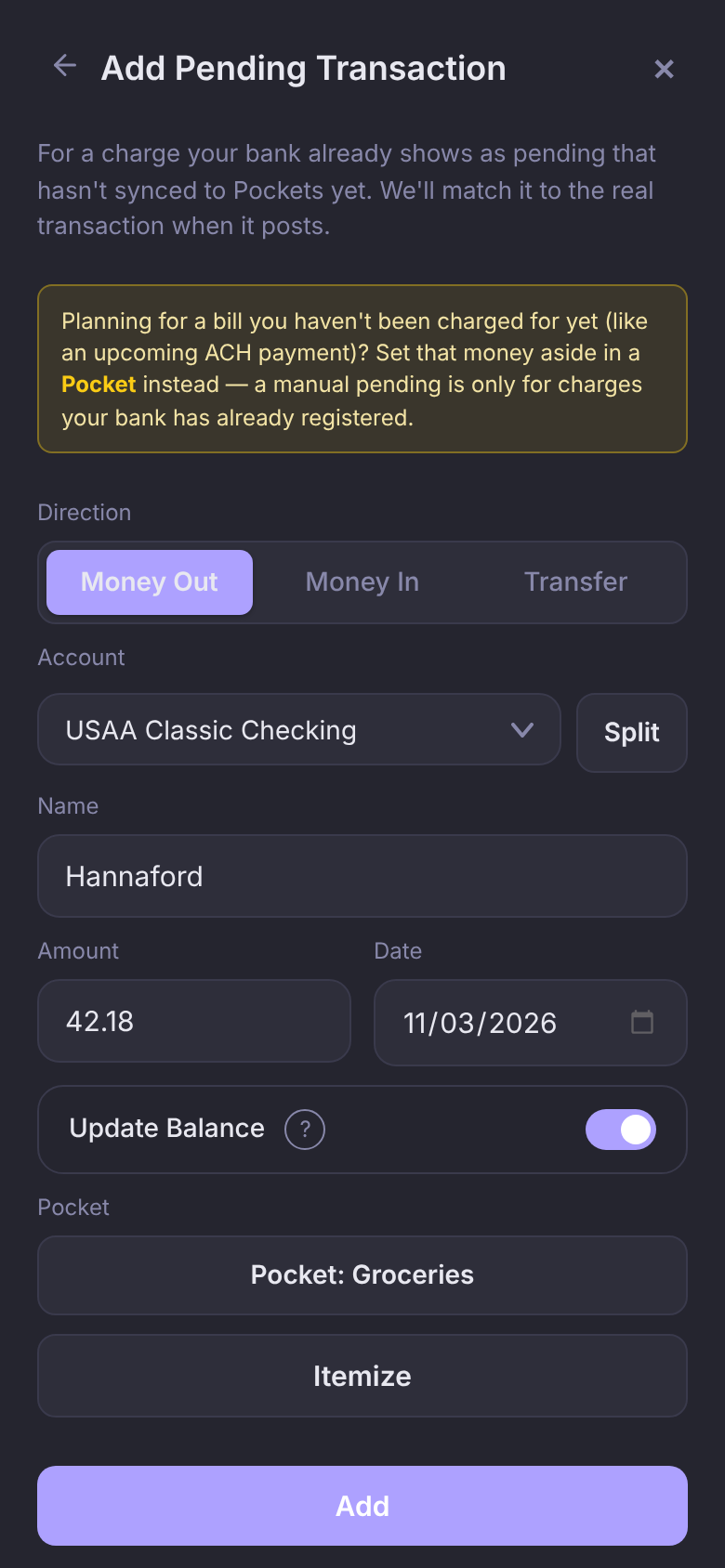
What happens next depends on the account:
- A connected bank account gets a pending transaction (the screen reads Add Pending Transaction). It's a stand-in until your bank's own transaction arrives, and it shows Not synced until then.
- A manual account gets a posted transaction, and the account's balance changes by the amount straight away. Nothing will ever sync to it, so there's nothing to wait for.
Update Balance, on a connected account, lowers your available balance by the charge right away, for banks that don't show a charge until it posts. It switches itself off once your bank reports a balance that already includes the charge.
Planning for a bill you haven't been charged for yet? Set that money aside in a Pocket instead. A pending transaction is for a charge your bank has already registered.
When your bank's transaction arrives
Pockets looks for your bank's transaction on the same account, for the same amount, within about a week of the date you entered. When it finds it, the two become one: your Pocket, split and items stay, the Not synced badge goes away, and the Pocket isn't charged twice.
- If Pockets finds a likely bank transaction but can't be sure it's the one, the transaction you entered shows Possible Match. Open it, check the bank transaction it names, and tap Match or Dismiss.
- If the amounts differ, like a tip added after you entered it, match it yourself: open it, tap ⋮, then Match to Bank Transaction, and pick the bank's transaction.
Money in or money out
Direction at the top of the form is Money Out unless you change it. Choose Money In for a refund or a deposit. Before it's added, Pockets shows you the amount once more and asks you to confirm with Add Deposit, because a wrong one would make your Good to Go look bigger than it is.
Entered it the wrong way round? Open the transaction, tap ⋮, then Change to Credit or Change to Debit. It stays linked to its Pocket. This is only for transactions you added by hand.
Paid more than one way
Put $200 of a $311.94 grocery run on your debit card and the rest on a credit card? Enter it once. Type the full Amount, then tap Split next to the account. A second row appears: pick its account and type what went on it, and the first row drops by the same amount. Tap + for a third.
Each payment becomes its own transaction, and each gets its own Pocket and its own Update Balance further down the form. The button says how many it will add, like Add 2 Transactions. Split works for Money Out and Money In (a refund back to two cards), not for a transfer.
Move money between accounts
Moving $150 from checking to savings takes one entry. Under Direction, choose Transfer, pick the From Account and the To Account, enter the amount and tap Add. Both sides are added for you: $150 out of one, $150 into the other.
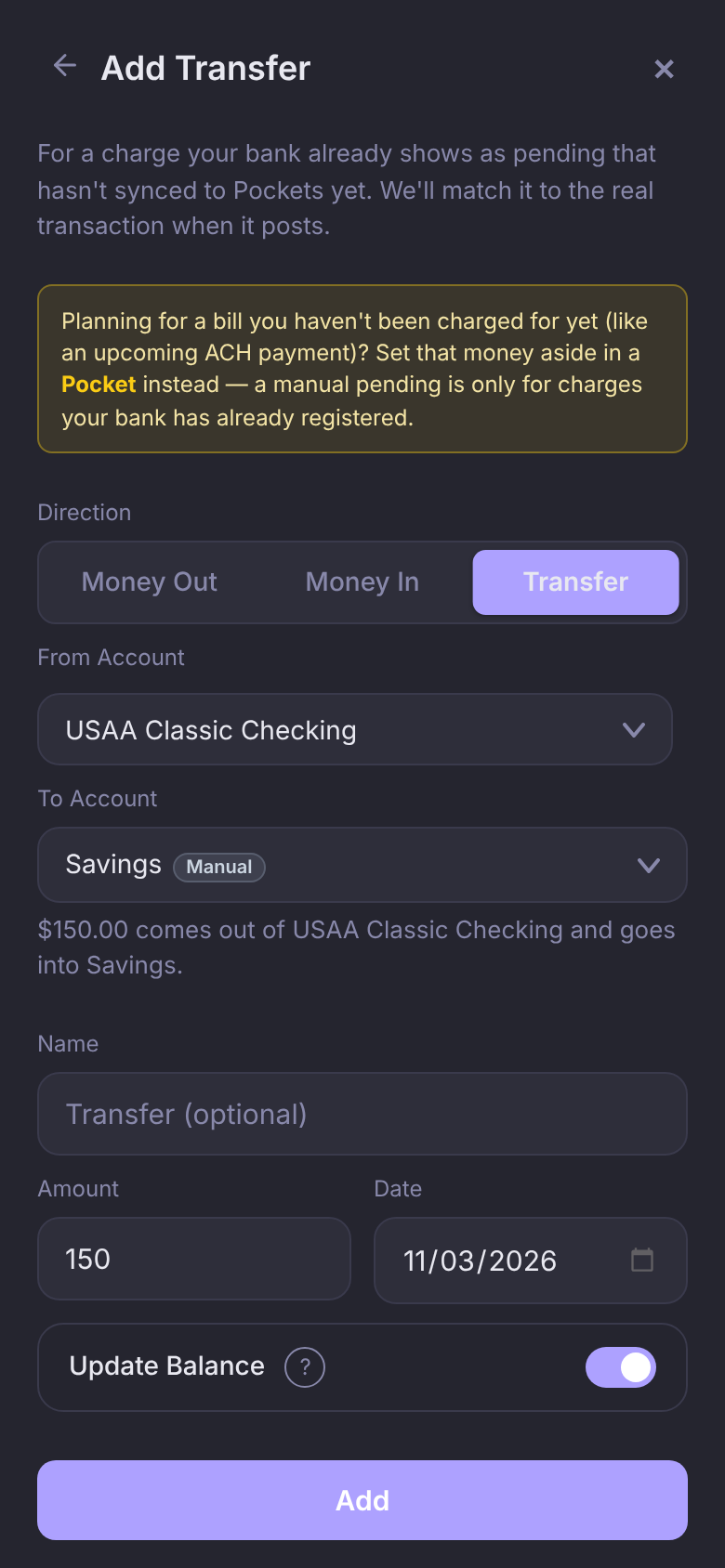
A transfer isn't spending, so it has no Pocket. The name is optional; leave it blank and the two sides read "Transfer to Savings" and "Transfer from USAA Classic Checking". Each side follows its own account, the same as a single entry: pending on a connected account, posted on a manual one.
Change the account
Put it on the wrong account? Open the transaction, tap ⋮, then Change Account, pick the right one and tap Move Transaction. The amount, date and Pocket stay the same. Only transactions you added by hand can move.
Moving onto a manual account posts it there and changes that balance. Moving onto a connected account makes it pending until the bank's transaction matches it. A manual account it leaves gets the amount back.
To remove one you added by mistake, open it, tap ⋮, then Delete Transaction.
Import a CSV
Importing a CSV is part of Premium.
Get PremiumBring in history from a file your bank exports, like transactions older than your connection reaches.
- Tap Funds, tap ⋮ on the account, then Import Transactions.
- Tap Choose File and pick the CSV. Pockets works out which column is which; check the mapping and the preview. Amount and date are required.
- On a credit card file where charges are positive, tick Invert amount signs.
- Skip transactions on or after starts at your oldest transaction on that account, so nothing already synced is added twice. Clear it to import everything.
- Tap Import Transactions. When it finishes, it tells you what was imported and what was skipped.
Questions
My hand-entered charge never matched. What now?
Open it and use ⋮ → Match to Bank Transaction to pick the bank's transaction. If the charge never went through, delete it with ⋮ → Delete Transaction.
Can I add transactions without connecting a bank?
Yes. Add a manual account from Funds with + Account, then add its transactions here. Its balance moves as you add them.