
Manual Accounts
No bank connection needed. Add an account, type in its balance, and it funds your Pockets just like a connected one. Free, with no limit on how many.
Add a manual account
- Tap Funds, then + Account next to Accounts.
- Tap Set Up Manual Account.
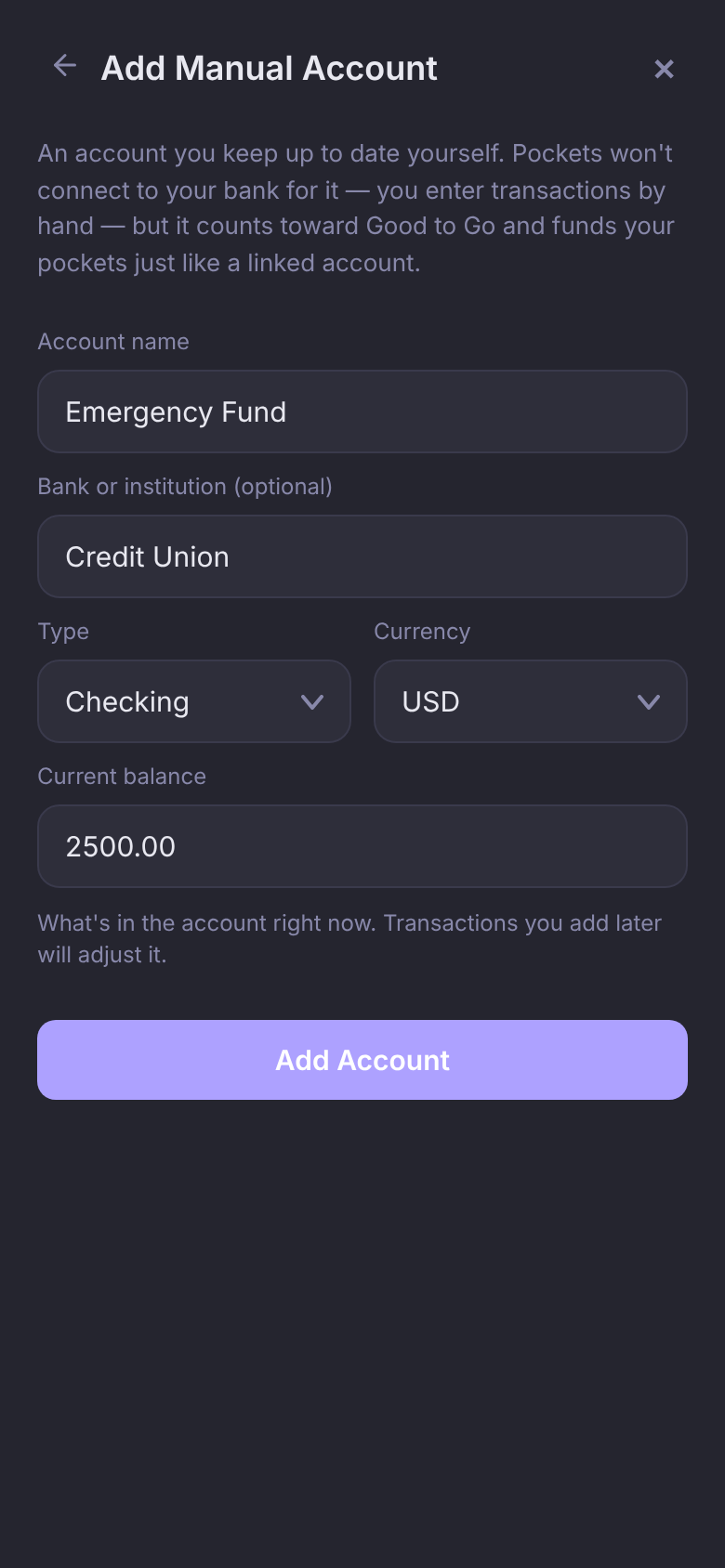
- Give it a name, like "Emergency Fund". The bank's name is optional.
- Pick the Type (Checking, Savings, Credit card, Cash, Loan or Other) and the Currency.
- Enter the Current balance, the amount in the account right now, like 2500.00.
- Tap Add Account.
For a credit card or a loan, the balance is what you owe, entered as a positive number. A card can also take a Credit limit to show your available credit, and a loan can take its rate and monthly payment. See Credit Cards and Loans and Investments.
Keep the balance up to date
Nothing syncs to a manual account, so you add its transactions yourself: Transactions → + Transaction → Manual Entry. Each one you add moves the balance. A $60.00 purchase takes a $2,500.00 balance to $2,440.00.
If the balance drifts from what your bank shows, set it straight:
- On Funds, tap the account's ⋮, then Update Balance.
- Enter what your bank shows right now and tap Save.
This replaces the balance outright. It doesn't add a transaction, so no Pocket changes.
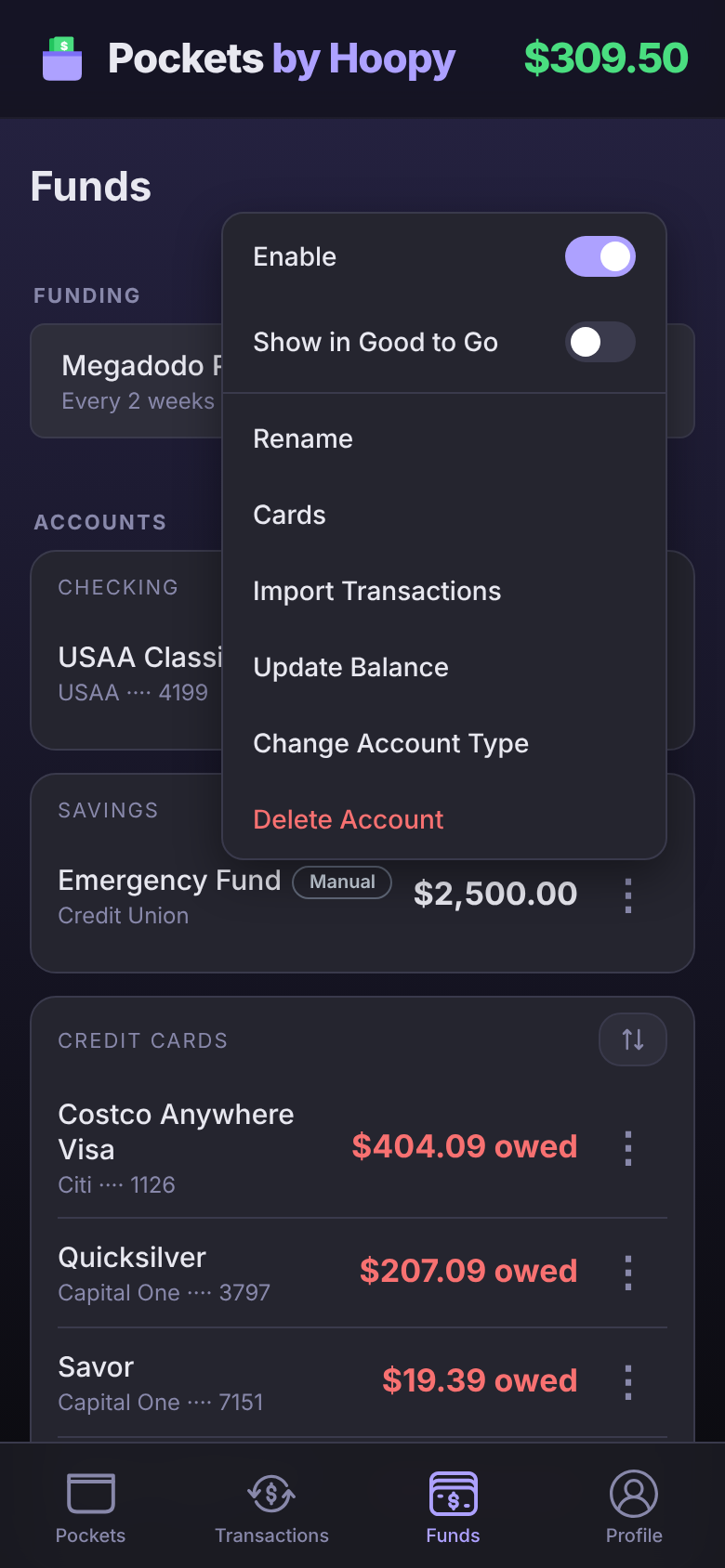
A manual checking account counts toward Good to Go when you add it. A savings account starts out left out. Switch either with Show in Good to Go in the same menu.
Change the account type
Picked Savings when it's really Checking? Fix it without starting over.
- Tap the account's ⋮, then Change Account Type.
- Pick the new type and tap Save.
Moving between a card or loan and an account that holds money changes what the balance means (what you owe versus what you have), so Pockets asks you to confirm the balance before it saves. Changing the type is for manual accounts; a connected account's type comes from your bank.
Reorder account types on Funds
Funds groups your accounts by type: Checking, Cash, Savings, Credit Cards, Loans, Investments and Other. Put the ones you check most at the top.
- On Funds, tap the ⋮ next to + Account, then Reorder Account Types.
- Drag the types into the order you want. It saves as you drop.
Account lists elsewhere in the app, like the account filter on Transactions, follow the same order.
Add card or account digits
Receipts and bank notifications often name a card by its last four digits. Tell Pockets which digits belong to which account and those get matched to the right one, manual accounts included.
- Tap the account's ⋮, then Cards.
- Tap + Add a Card and enter the last four digits only. A label, like "Debit card", is optional.
- Tap Save.
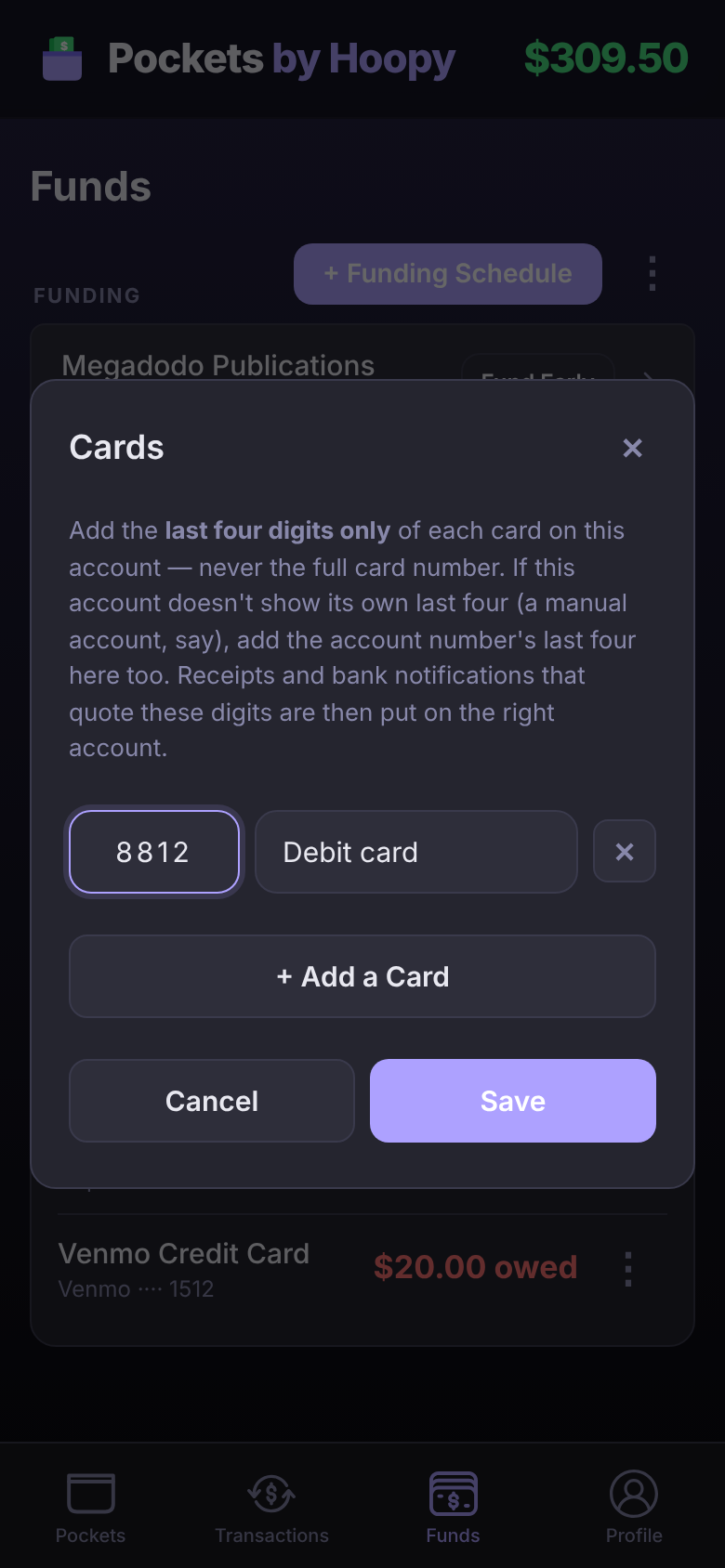
Never enter a full card number. If you paste one, Pockets keeps only the last four. For a manual account, add the account number's last four here too.
Questions
Do manual accounts cost anything?
No. They're free on every plan, as many as you like, and they never count as a bank connection.
How do I delete a manual account?
Tap its ⋮, then Delete Account. Its transactions are deleted with it and can't be recovered. Pockets they were linked to keep their current amounts.