
Transactions from Bank Notifications (Beta) Premium
Your bank already tells you the moment you spend. Pass that notification to Pockets and the purchase is in, matched to its Pocket, before your bank's sync catches up.
Turning bank notifications into transactions is part of Premium.
Get PremiumSpend $42.18 at Hannaford and your card app pings you. A moment later the charge is in Pockets as a transaction in your Groceries Pocket, and Good to Go already shows it. When your bank's own transaction arrives, the two become one, so nothing is counted twice.
It works with manual accounts too: with no bank connection at all, each notification becomes the transaction and moves the account's balance.
This is in beta and still changing. It works on iPhone with iOS 27 or later, through the Shortcuts app, and on Android with an automation app like MacroDroid, using Pockets by Hoopy in your phone's browser or from your home screen.
Before you start
- Turn on Beta Features in Profile → Preferences.
- Make sure your bank's or card's app sends you notifications for purchases. That's set in the bank's app, and in your phone's notification settings.
- Open Pockets by Hoopy on the phone that gets your bank's notifications. The setup happens there.
- On that phone, turn on Push Notifications in Profile → Notifications. That's how Pockets confirms your setup works, and how it tells you about each charge it adds.
Set it up on iPhone
Open Bank Notifications from Profile, or from Automatically Grab Bank Notifications at the top of Add Transaction (Transactions → + Transaction). Then:
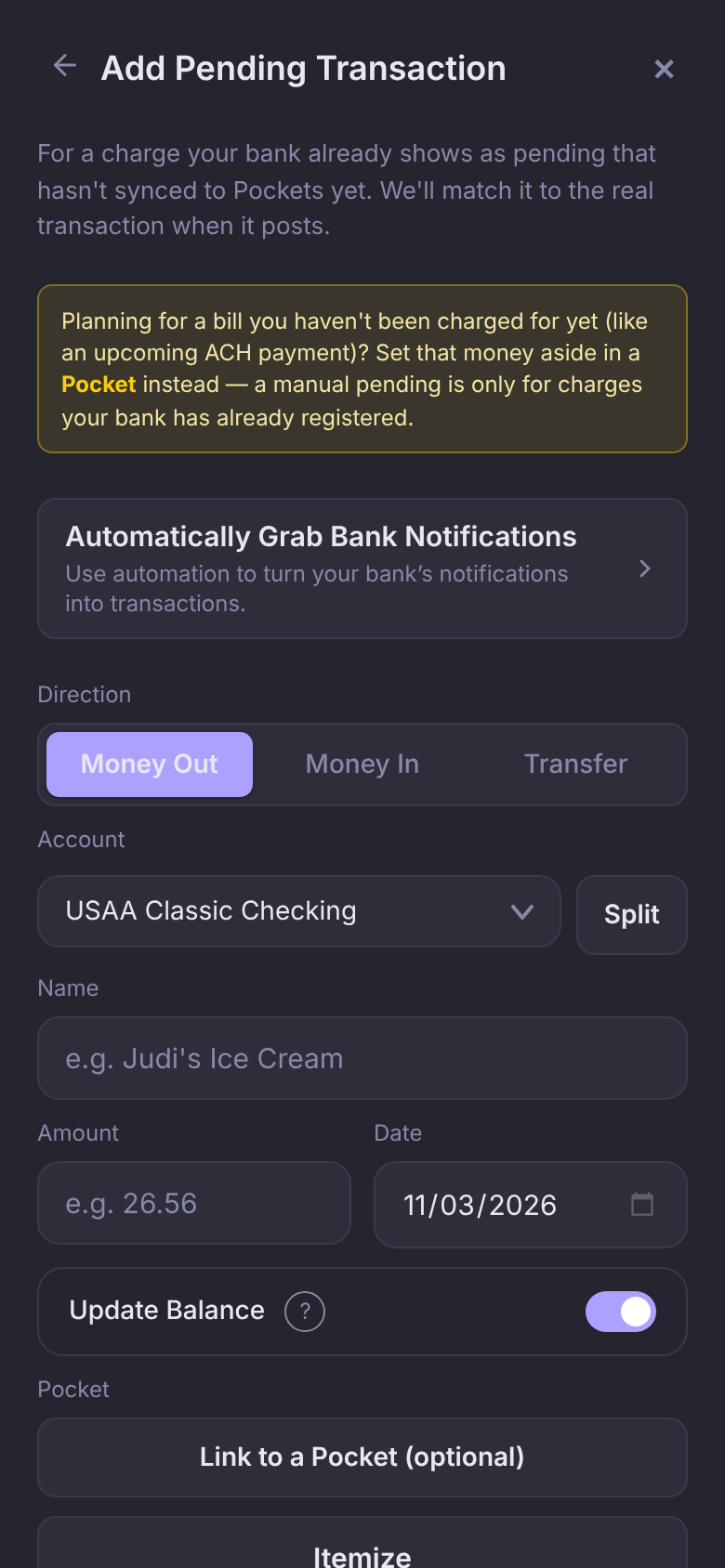
- Tap Set Up Shortcut. Your private URL is copied.
- Open the Pockets shortcut from the link on that screen and tap Add Shortcut.
- In Shortcuts, tap ▶ on Send Transaction to Pockets. Paste your URL, tap Done, then tap Allow when it asks to connect to pockets.byhoopy.app.
- Open the shortcut to see the response. It should say "Your shortcut is connected to Pockets."
- It only watches Capital One to start. In the shortcut, tap Capital One after "When I receive a notification from" and pick your bank and credit card apps.
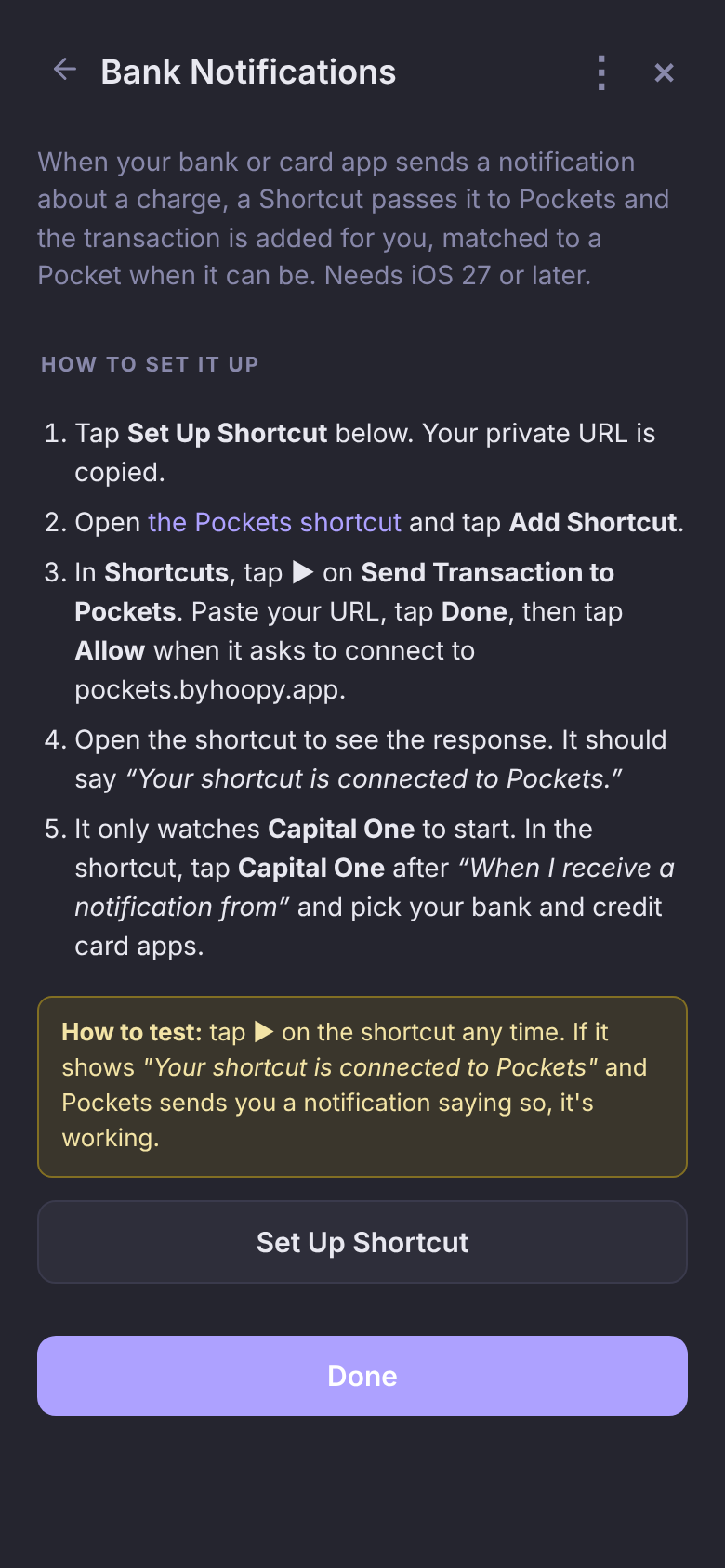
iPhone may ask before each run, depending on the trigger. That's one tap on the prompt to add the charge.
Set it up on Android
On Android, a free automation app passes your notifications to Pockets. Open Bank Notifications from Profile, or from Automatically Grab Bank Notifications at the top of Add Transaction, on your phone. Then:
- Install MacroDroid from the Play Store.
- Tap Get URL and Macro. The macro downloads with your private URL already in it.
- Tap Open on the download notification and choose MacroDroid. The macro opens as Add to Pockets.
- Its trigger says Missing required permission — tap to grant. Tap it, find MacroDroid in the list, turn on Allow notification access, and tap Allow.
- Back in the macro, save it.
- Turn off battery optimization for MacroDroid so it keeps running in the background.
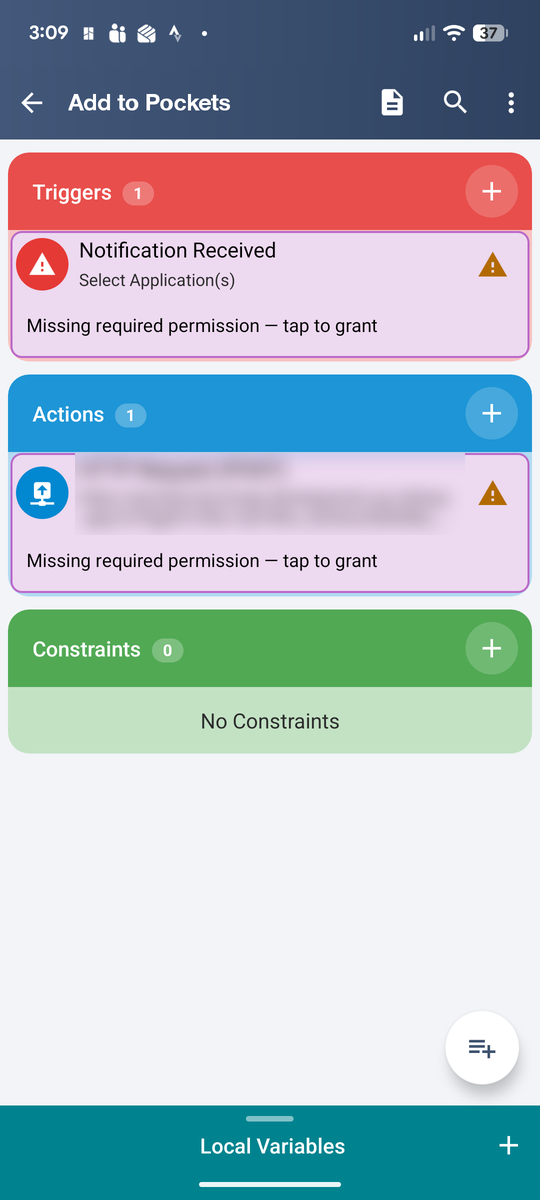
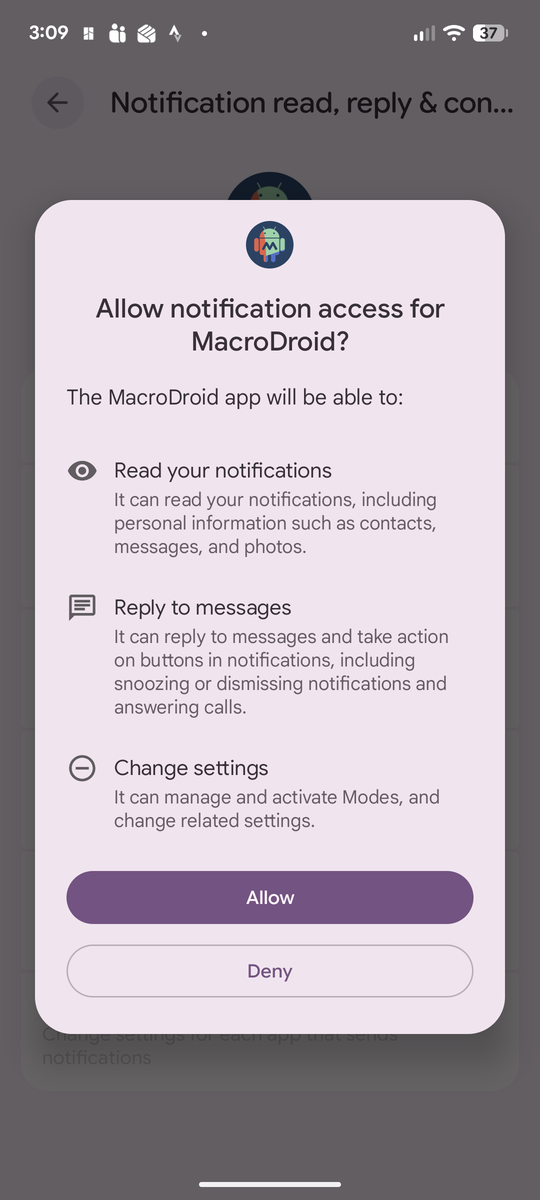
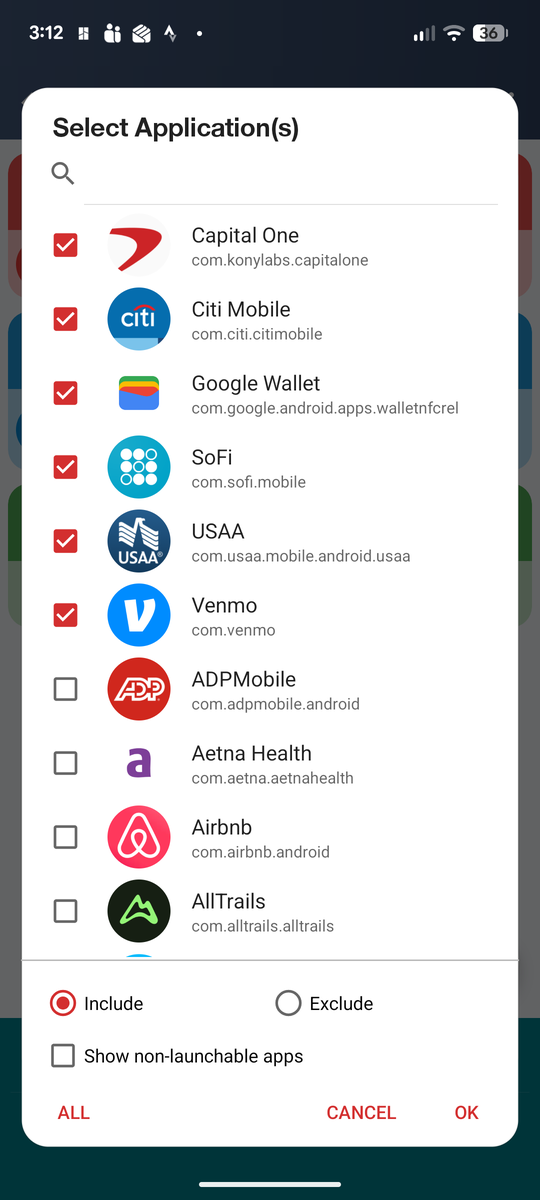
The macro reads every app's notifications that have an amount in them, so there are no apps to pick. Rather limit it to your bank apps? Tap the trigger, choose Select Application(s), and tick them.
Using a different automation app? Under Using a different automation app? on that screen are the details it needs: your URL, and what to send.
Test it
iPhone: tap ▶ on the shortcut any time. If it shows "Your shortcut is connected to Pockets" and Pockets sends you a notification saying so, it's working.
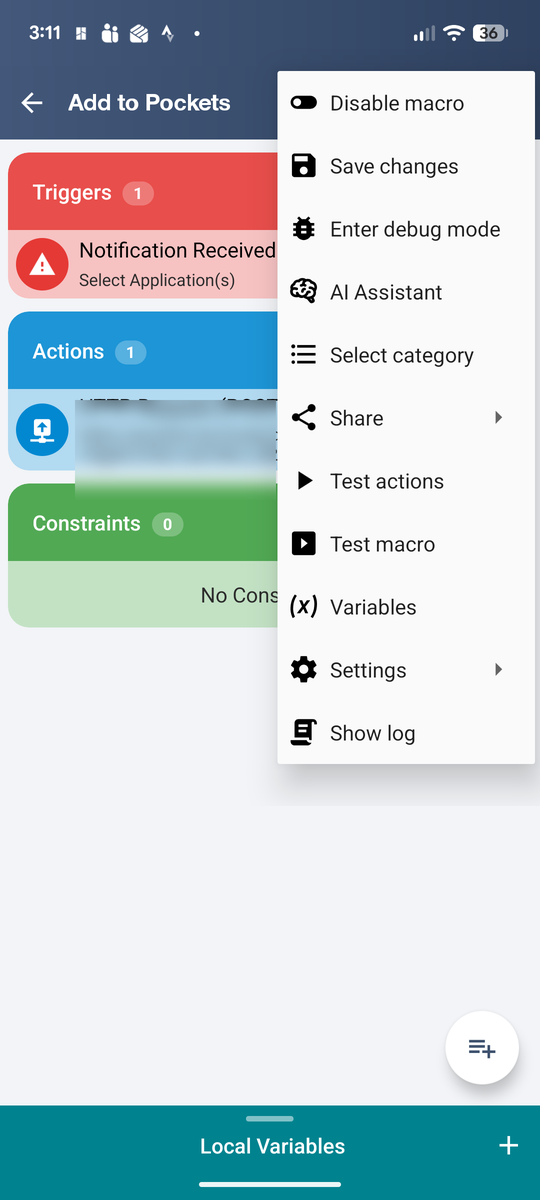
Android: open the macro in MacroDroid, tap ⋮ → Test macro. If Pockets sends you a notification saying it's connected, it's working.
A test sends no purchase, so nothing is added.
No notification from the test? Check that Push Notifications is on in Profile → Notifications, on this phone and in the account you made the URL in. On Android, MacroDroid's Show log (in the same ⋮ menu) should say HTTP response code: 200. If it does, the macro reached Pockets.
Your next real purchase is the full test: it should land in Transactions a few seconds after your bank's notification.
When Pockets can't read a notification
Every bank words its notifications differently. If Pockets gets one it can't read yet, nothing is added, and the notification waits at the top of Bank Notifications so you can teach Pockets which part is the amount and which is the merchant. After that, notifications in the same format are read on their own.
A notification with no amount in it, like a login code or a promotion, is ignored.
The rules you've taught are under ⋮ → My Bank Rules, and formats you've told it to skip are under Ignored Formats.
Your private URL
The URL is what lets your shortcut add transactions to your account, so keep it to yourself. Once it's made, Bank Notifications shows it with a Copy button, for setting up the shortcut on a new phone.
If it ever leaks, tap ⋮ → Delete URL. The old one stops working right away. Then set it up again for a new one: Set Up Shortcut on iPhone, or Get URL and Macro on Android.
Questions
Do I need a bank connection?
No. With a connected bank, the notification's transaction is replaced by your bank's own when it arrives. With a manual account, the notification is the transaction, and the account's balance moves with it.
Will a purchase show up twice?
No. When your bank's transaction comes in for the same amount on the same account, it takes the notification's place and keeps its Pocket.
What if my Premium ends?
The shortcut stops adding transactions, and your URL is kept. Renew and it picks up again with nothing to set up.
Does it read my other notifications?
On iPhone, only the apps you pick in the shortcut send anything. On Android, MacroDroid passes along notifications with an amount in them, and you can limit it to your bank apps in the macro's trigger. Either way, Pockets ignores any notification without an amount.