
Assigning Transactions
Tell Pockets which Pocket paid for a purchase, and your Good to Go stays true: the money comes out of what you set aside, not out of what's safe to spend.
Assign a transaction to a Pocket
Say your Eating Out Pocket holds $50 and you spend $37.65 at Hocus Smokus BBQ. The charge lowers your bank balance, and Good to Go with it. Assign it to Eating Out and the Pocket covers it: Eating Out drops to $12.35, and Good to Go goes back to where it was before dinner.
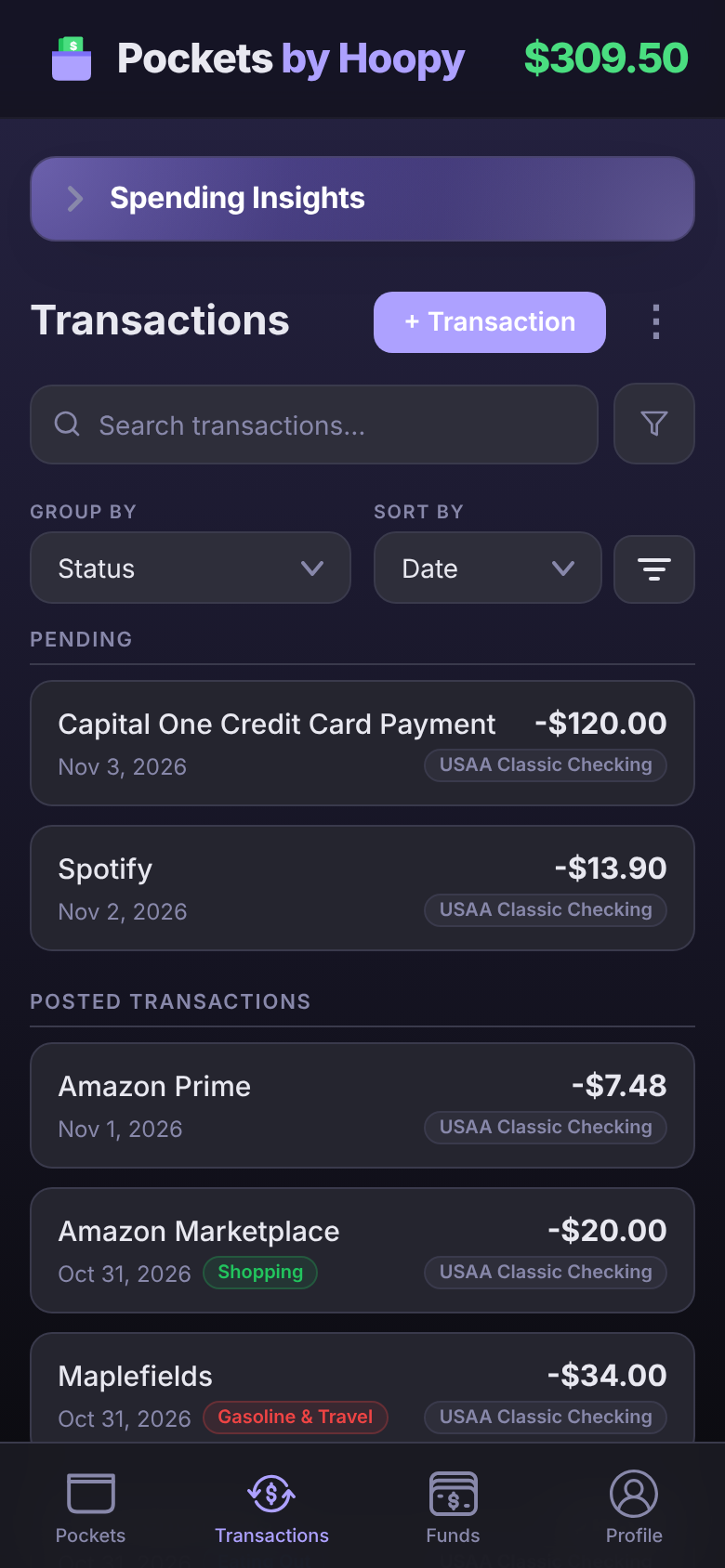
- Tap Transactions at the bottom of the screen, then tap the transaction.
- Under Pocket Links, tap Link to a Pocket and pick the Pocket.
- Tap Save.
A purchase with no Pocket comes straight out of Good to Go, which is right for anything you didn't plan for. To take a transaction back out of its Pocket, tap the Pocket's name, choose No Pocket and tap Save. The money goes back into the Pocket.
Bought groceries and a phone charger in one trip? One transaction can spend from more than one Pocket. See Split and Itemize.
When you spend more than the Pocket holds
That's over budget, and nothing breaks. The Pocket goes down to $0 and the rest comes out of Good to Go. If dinner had been $62.40 against the $50 in Eating Out, the Pocket would end at $0 and Good to Go would be $12.40 lower.
Paying a bill moves its due date
When you assign a bill's payment to its Pocket, the Pocket's due date moves on to the next one, and it starts funding for that bill. Link your $325 Service Credit Union payment to a Car Payment Pocket due Nov 4, and Car Payment is next due Dec 4.
An Advance Due Date switch appears under the Pocket and names the new date before you save. It's already on when the payment lands close to the due date; switch it off if this payment wasn't the bill itself. It only appears for Pockets with a due date, never for a Spending Fund or a Savings Goal.
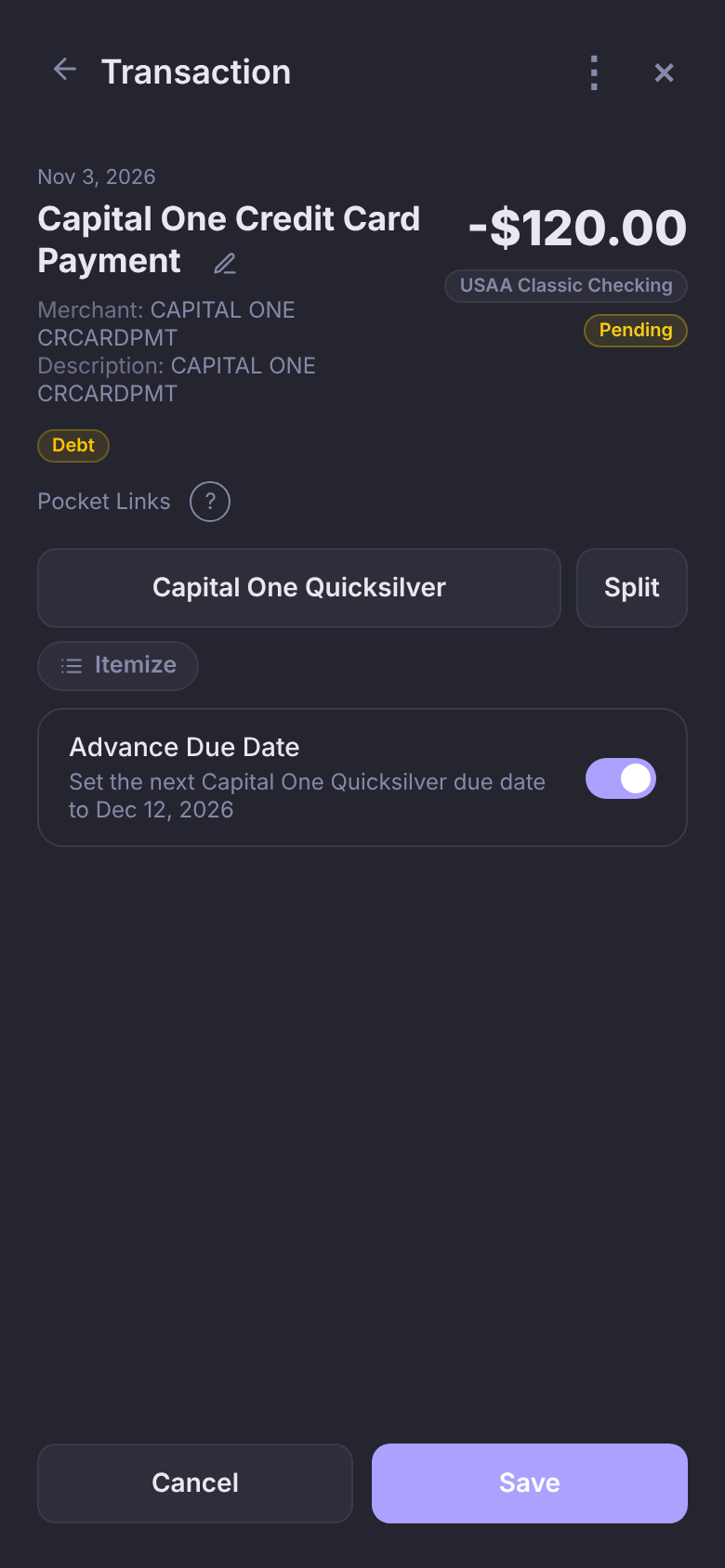
Unlink a payment that moved a due date, and Pockets asks whether to put the date back: Reset to Nov 4 or Keep current. Keep it if you paid that bill another way.
Automatic matching
You only assign a merchant once. After that, its new transactions link themselves to the same Pocket and carry an Auto-linked tag, and a bill's due date moves on without you. When Pockets has a good guess for a transaction, it puts that Pocket in place with Suggested next to it. It guesses from where you've put that store before, even when the amount is different. Tap Save to keep it, or tap the Pocket to pick another. Pick No Pocket and it stays that way.
Pending and posted
Banks show a new charge as Pending, then Posted a few days later. You don't have to wait: assign the pending charge now. When it posts, it keeps its Pocket (and any split), and the Pocket isn't charged a second time.
A transaction you added yourself carries a Not synced badge until your bank's own transaction matches it. Once it does, the badge goes away and the Pocket stays put. See Adding Transactions by Hand.
Assign several at once
- Long press a transaction (right-click on a computer), or tap ⋮ next to + Transaction and choose Select Transactions.
- Tap any others you want. Select All picks every transaction that matches your search and filters, including ones you haven't scrolled to yet.
- Tap Link, pick the Pocket, then Link again to confirm. Pick No Pocket to take them all out of their Pockets instead.
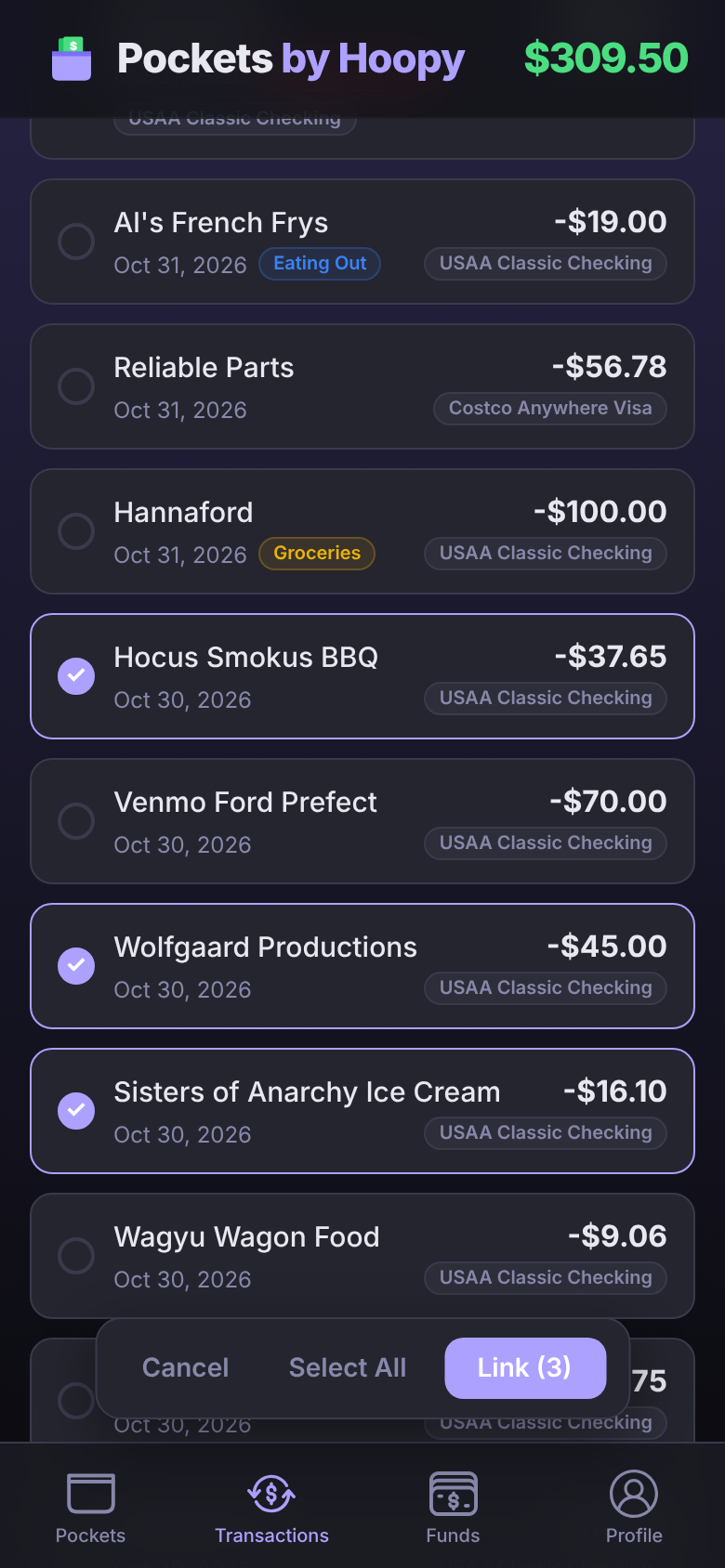
When every transaction you've selected was added by hand, a Delete button appears too.
Questions
Why did it ask "Use pocketed funds?"
The transaction is from before the Pocket's current cycle, like last month's bill. Yes, release to GTG takes it out of what the Pocket holds now. No, link only files it under the Pocket without moving any money.
Does assigning a transaction change my bank balance?
No. Your balance is whatever your bank says. Assigning only decides whether the money comes out of a Pocket or out of Good to Go.
I unlinked several payments from one bill. Will I get a question for each?
No, one per Pocket. It puts the due date back one cycle for each payment you unlinked.