
Split and Itemize
One trip to the store, several Pockets. Split a purchase so each Pocket pays only its part, and list what you bought so you can find it later.
Split a purchase across Pockets
A $100 Hannaford run was $81.60 of groceries and an $18.40 phone charger. Split it, and Groceries pays $81.60 while Shopping pays $18.40.
- Open the transaction from Transactions and link it to the first Pocket.
- Tap Split next to that Pocket. A second row appears.
- Tap Link to a Pocket on the new row, pick the Pocket and type its amount. The first Pocket's amount adjusts so the two add up to the purchase.
- Need a third? Tap +. The trash can removes a row, and its amount goes back to the first Pocket.
- Tap Save.
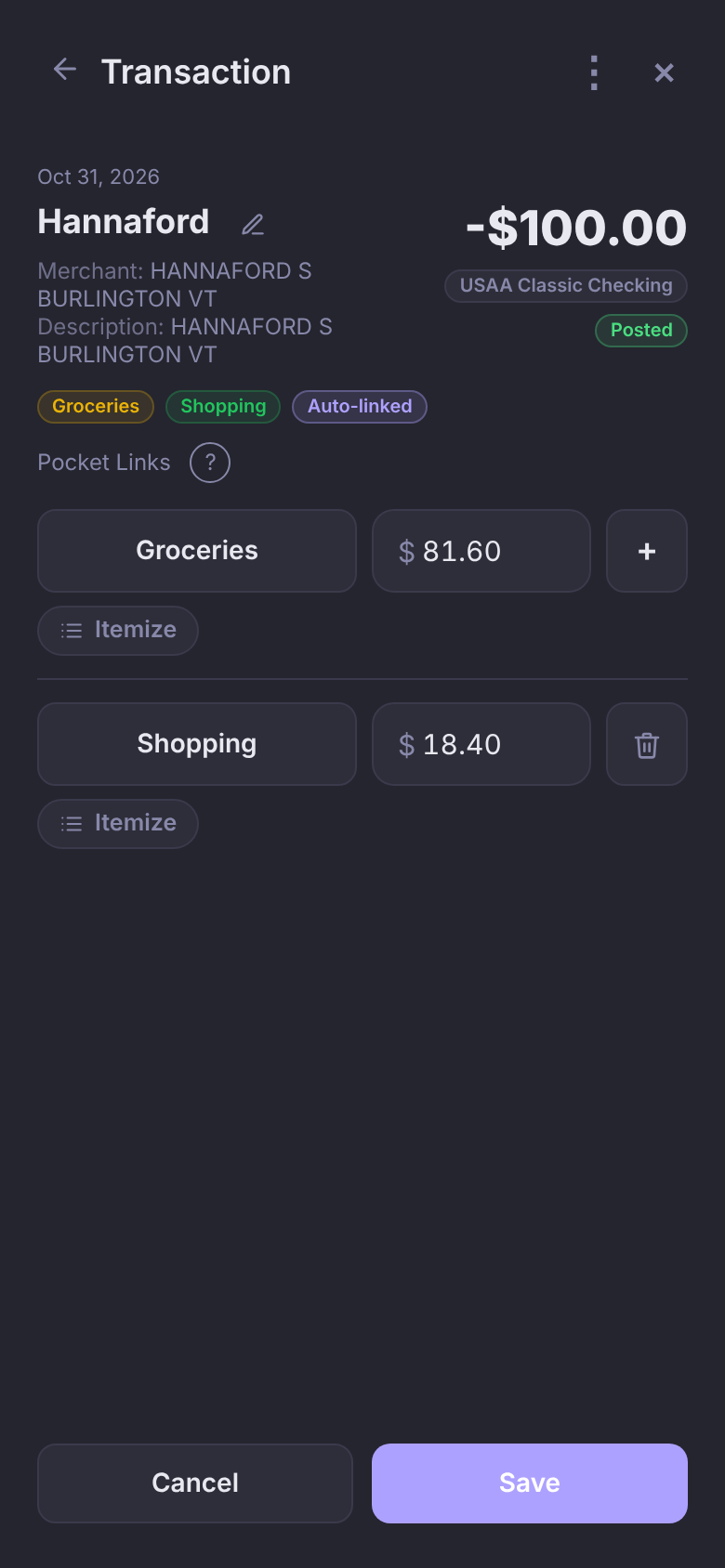
Leave part of a purchase out of every Pocket and a Not in a Pocket line shows how much; that part comes out of Good to Go. If the Pockets add up to more than the purchase, an Over by line appears and it won't save until you fix it.
Each Pocket is charged only its own part, in its balance and in Spending Insights. A bill in a split gets its own Advance Due Date switch under its row.
Itemize what you bought
A list of what was in a purchase, line by line. Search for "paper towels" and you'll find the Hannaford trip they were on.
- Open the transaction and tap Itemize under the Pocket. A transaction with no Pocket has one too.
- Type a description and an amount on each line. Add Item adds a line, or press Enter on the last one. To put the lines in a different order, press and hold the bars on the left of a line, then drag it.
- For a coupon or a discount, tap the + beside its amount so it reads −. That line takes money off instead of adding it.
- Tap Done, then Save on the transaction.
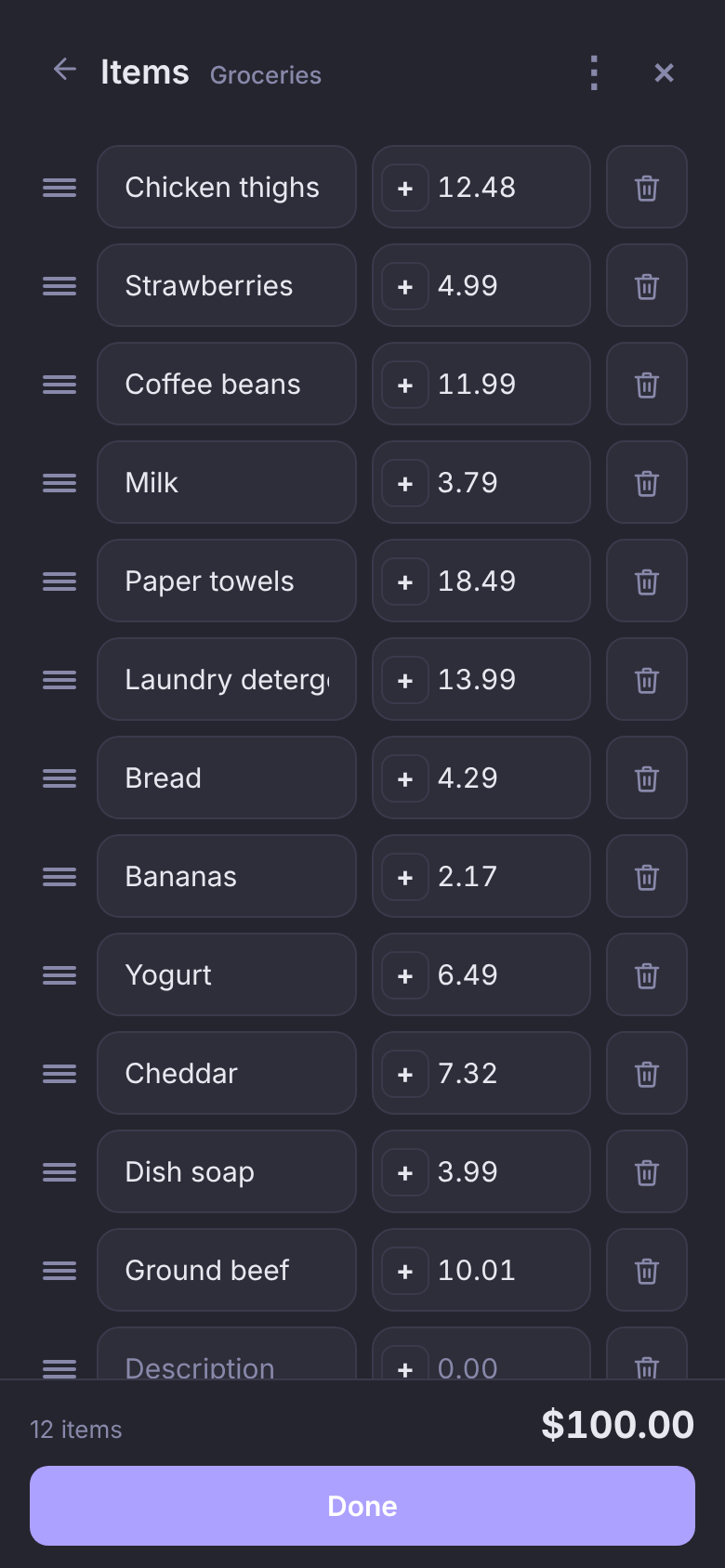
On a single Pocket, the list adds up to the transaction. Come in short and Done adds the difference as a line you can name later. Go over and Done waits until you lower or remove a line. On a split, each Pocket has its own list, and that list's total becomes the Pocket's amount.
Itemized a transaction before choosing a Pocket? The list goes with it when you pick one.
Fill the list from a receipt
Reading a receipt for you is part of Premium. Splitting and itemizing by hand are free.
Get PremiumSkip the typing: take a photo of the receipt, or choose a photo or PDF of it, and every line goes into the list, with tax and tip as lines of their own.
- On the transaction, tap ⋮, then Itemize from Receipt.
- Or on the Items screen, tap ⋮, then Fill from Receipt. On a split, do this from each Pocket's Items screen.
Paid for that receipt more than one way, like part in cash? Pockets shows you every payment on it, with this transaction as one of them. The rest are added as their own transactions when you tap Add, and this one's items fill in for you to save.
Check the lines, tap Done, then Save. If you try to leave before saving, Pockets asks first, so you don't lose the list.
No transaction yet? Tap + Transaction, then From Receipt. Pockets makes one transaction for each card or cash you paid with, already itemized, and shows them to you first. Paid another way the receipt doesn't show, like part on a second card? Tap Split next to the amount, pick the account on the new row and type how much went on it; the first payment drops by the same amount. Nothing is added until you tap Add Transaction (or Add 2 Transactions for two).
- Paid partly in cash and don't have a cash account yet? Pockets asks: Ignore leaves the cash part out, and Create Cash Account makes one called Cash and adds the cash part to it.
- If one of the payments looks like it's already been added, Pockets says so. Tap Merge Into It to put the receipt's items on the transaction that's already there instead of adding a second one.
- Drag a line by the bars on its left to reorder it, or to move it to another payment. Its amount moves with it.
Move items to a different Pocket
The paper towels, laundry detergent and dish soap on that grocery receipt belong in Household. Move them, and $36.47 shifts from Groceries to Household without retyping anything.
- On the Items screen, tap ⋮, then Move to Different Pocket.
- Tick the items, then tap Choose Pocket and pick one.
- Tap Save on the transaction.
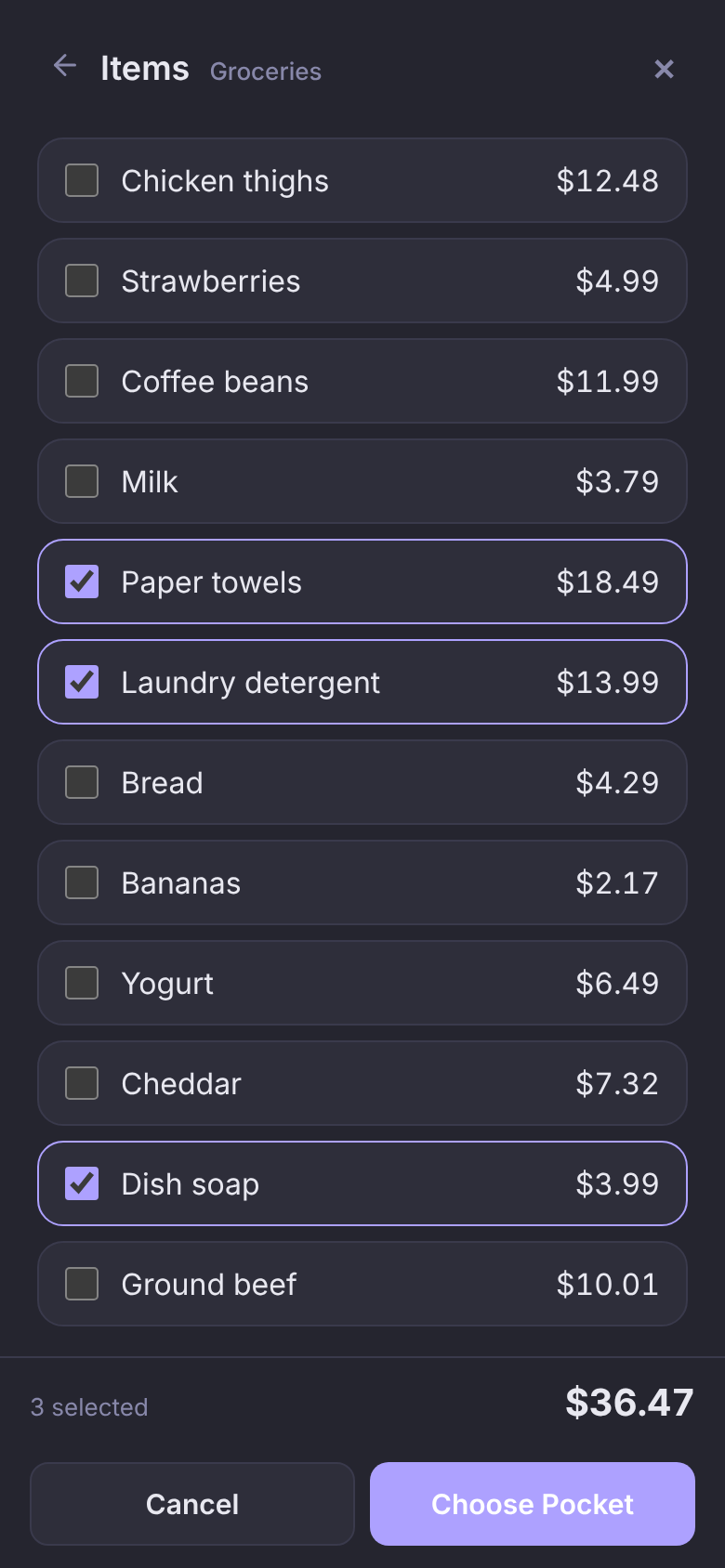
If that Pocket isn't on the transaction yet, the purchase becomes a split. If it is, the items join its list. Either way the total stays the same.
Questions
Do I need Premium to split or itemize?
No. Splitting and itemizing are free. Only reading a receipt for you (From Receipt, Itemize from Receipt and Fill from Receipt) needs Premium.
Does itemizing change how much leaves my Pockets?
Only through the amounts. On a split, a Pocket's list total is what that Pocket pays. On a single Pocket, the list is a record of what you bought; the Pocket pays the whole transaction either way.
What happens to the photo of my receipt?
It's read and then discarded. It isn't stored.