
Notifications and Email
Know the moment money moves: a purchase, a bill that needs you, payday funding. You choose what reaches your phone and your inbox.
What Pockets sends
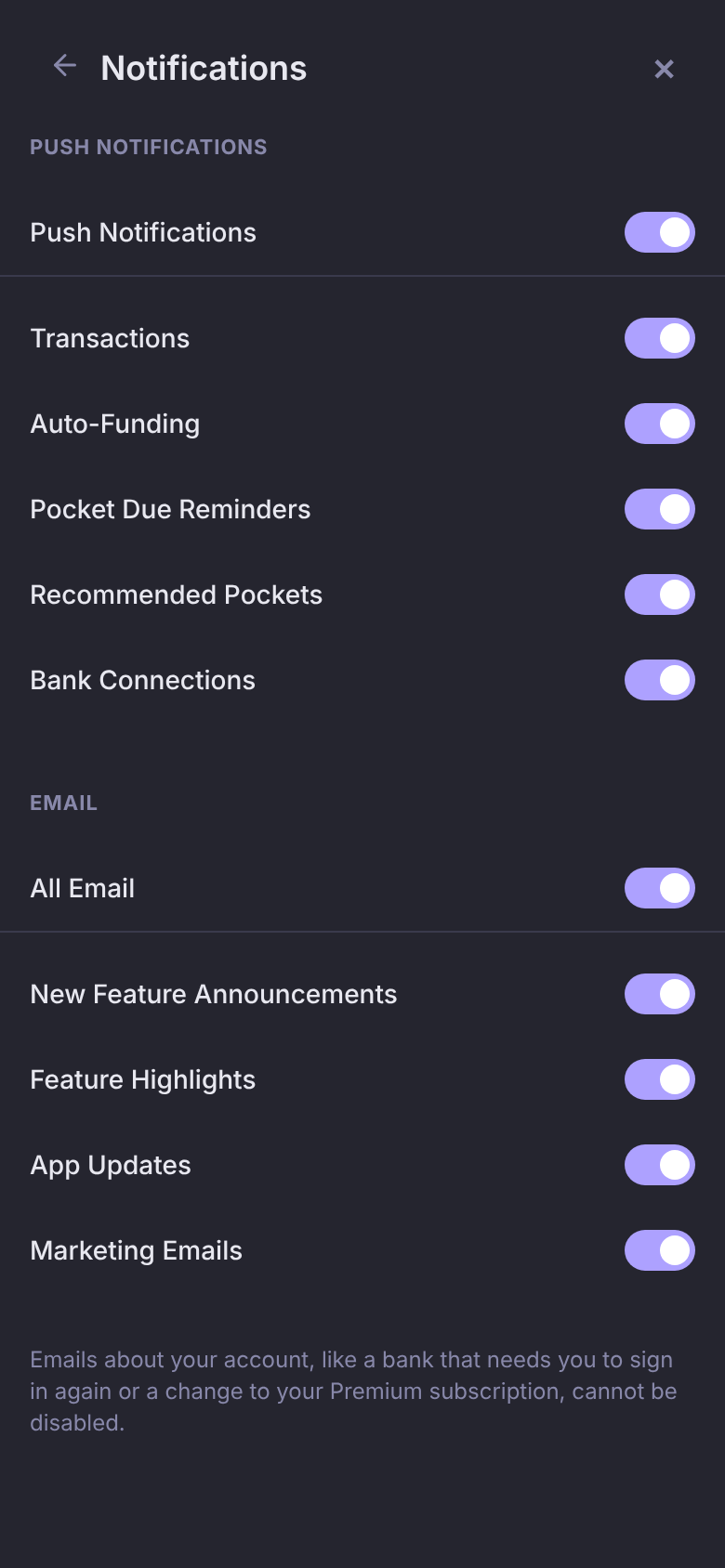
Each kind of push notification has its own switch, so you keep the ones you want:
- Transactions: every new purchase, and money coming in, like "Spent $45.00 at Costco", with the account it's on and what the Pocket has left ("Groceries: $12.50 left"). Not in a Pocket yet? Tap the notification to add it to one. When a purchase changes your Good to Go, the notification says the new number.
- Auto-Funding: on payday, how much was funded and across how many Pockets. Tap it for the breakdown.
- Pocket Due Reminders: a bill that's a few days past due with no payment linked to it, and a bill that will be short with no paycheck landing before it's due.
- Recommended Pockets: a recurring charge that Pockets thinks deserves a Pocket of its own.
- Bank Connections: a bank that needs you to sign in again so it can keep syncing.
Turn on push notifications
- Tap Profile, then Notifications under Preferences.
- Turn on Push Notifications, and choose Allow when your browser asks.
- Switch off any kind you don't want.
Push is turned on per device, so do this on each phone or computer you want to hear from. The kinds you pick follow your account to every device.
On iPhone, add Pockets by Hoopy to your Home Screen first. Safari only delivers push notifications to apps on the Home Screen.
Mute one account
Don't need a notification for every charge on a card you rarely check? Mute just that account.
- Tap Funds.
- Tap the ⋮ on the account.
- Turn off Notifications.
Its transactions still come in and still count toward your Pockets. You just won't get a notification for each one. Reminders about your Pockets aren't affected.
The switch appears once push notifications are on for at least one of your devices.
Choose your emails
On the same screen, under Email, each kind of optional email has its own switch:
- New Feature Announcements: when something new ships.
- Feature Highlights: a closer look at something already in the app.
- App Updates: fixes and smaller changes.
- Marketing Emails: everything else promotional.
All Email turns them all on or all off in one tap. Every one of these emails ends with a Manage Notifications link that opens this screen.
Account emails always send, because you need them: a bank that needs you to sign in again, your Premium starting or ending, or a bank connection being removed.
Questions
Do you email me my transactions?
No. Transactions only ever come as push notifications. Email is for news you've opted into and for your account.
The Push Notifications switch won't turn on.
The screen says why under the switch. If notifications are blocked, allow them for pockets.byhoopy.app in your browser's settings, then try again. On iPhone, open Pockets by Hoopy from your Home Screen rather than from Safari.
I turned push off on my computer. Why does my phone still get them?
Push is on or off per device. Turn it off on the phone too, or switch off the kinds you don't want, which applies everywhere.